
|
|
ShowTheBest.ComInteractive tables on your web pages |
This tool sets all the labels that ShowTheBest.Com uses to identify widgets and headers. It allows you to change (or leave) all the default labels. Using this tool requires you to first define the Interactive Table Case Database.
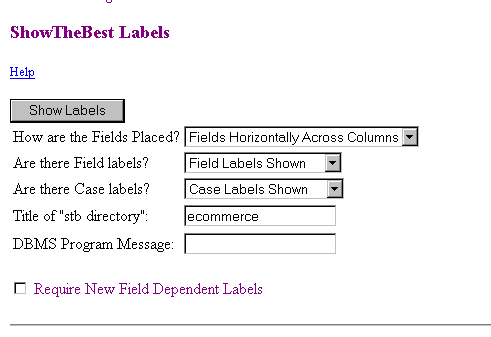
If you want to examine the basic labels only, don't check the box and press the Show Labels button. The Label Tool presents you with a set of 10 input widgets for the following labels:
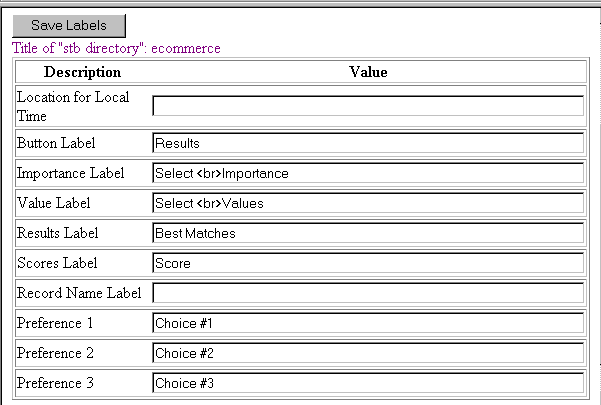
Any text is valid (except no tabs or return characters). You can put in HTML formats. Note that the style for every label is defined in the ShowTheBest.Com style sheets.
The first label lets you time stamp your Interactive Table; (Just leave it blank if you do not want a time stamp.) The others specify headers in the Interactive Table form. The last set of labels lets you define the labels for Map preferences.
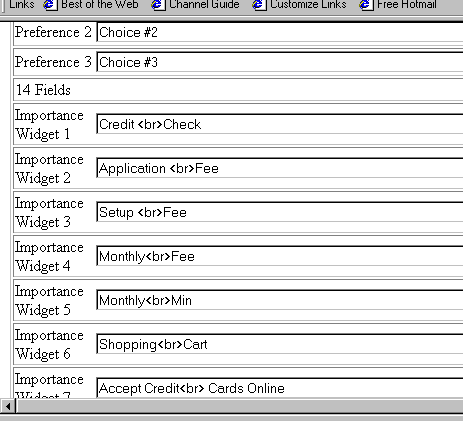
These labels are independent of the fields: the rest of the labels that ShowTheBest.Com uses are derived from the field names and record names of the Table Database. If you want to change these then go back to the first page of the Label Tool and check the "Require New Field Dependent Labels" checkbox. The Label Tool will now show you all labels that ShowTheBest uses:
© Inductive Solutions, Inc. All Rights Reserved.